Free · No install · No sign-up
A free drawing app with layers & pen pressure.
DrawingPad is a free online drawing app that feels natural with a pen. Pressure-sensitive brushes, silky smooth lines and layers — open the page and start drawing.
Works with Apple Pencil, stylus, touch, mouse and trackpad.
A little help getting started
Make your next drawing easier.
Practical guides, real brush examples and an editable project to try for yourself.
Features

Drawing with layers
Build an illustration one layer at a time. Keep color, line work and finishing touches separate.
Read the guide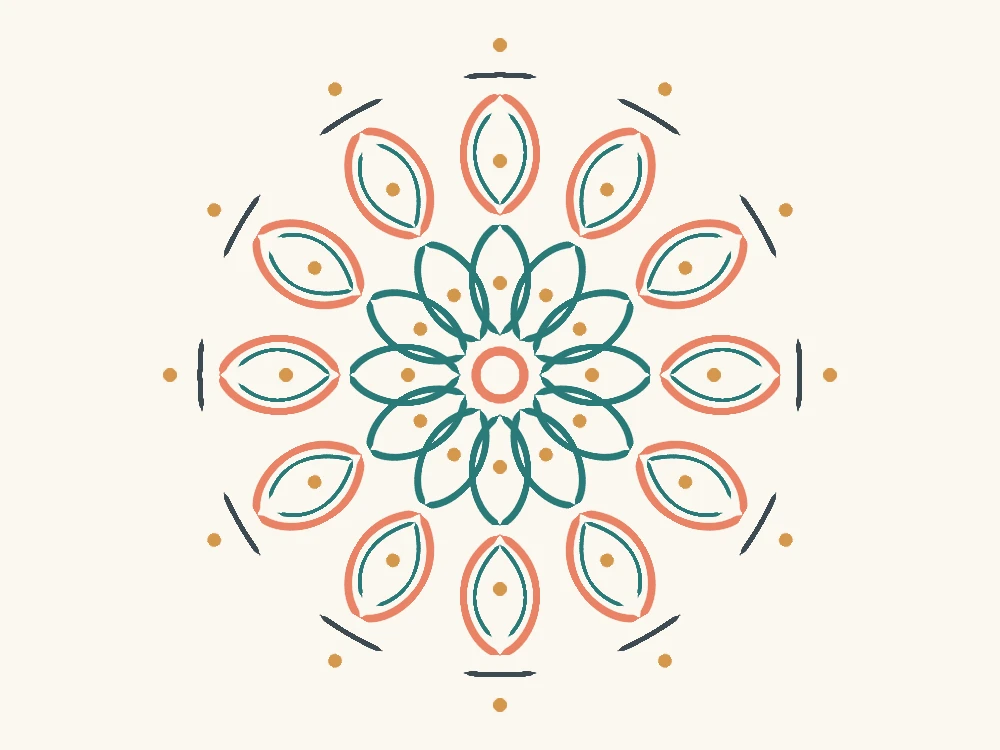
Symmetry & mandalas
Turn on Mirror, Four-way or Radial symmetry and every stroke repeats around the center of your canvas.
Read the guide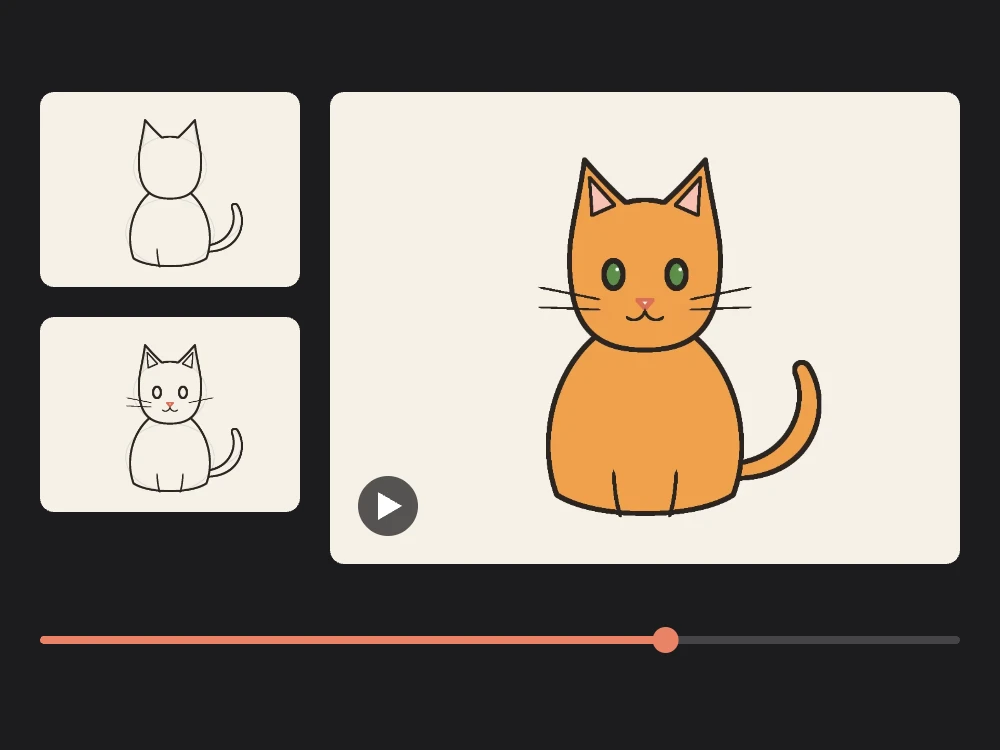
Timelapse videos
Keep drawing, then export a short video of your process, from the first line to the finished piece.
Read the guideDraw on any device
Drawing on iPad
Set up your pencil, find a comfortable pressure response and learn the gestures that keep you drawing.
Read the guide
Drawing on a Chromebook
Open DrawingPad in Chrome, pick up a stylus or use the touchpad, and keep your drawings safe on a school or personal Chromebook.
Read the guide
Using a drawing tablet
Get pen pressure working with your tablet, pick a pressure curve and set up the shortcuts that keep your hand on the pen.
Read the guide
Drawing with a mouse
Stabilization smooths shaky lines, and pausing at the end of a stroke turns it into a straight line, circle or rectangle.
Read the guideIdeas & projects

Exporting a transparent PNG
Turn a sketch into a reusable PNG for a slide, a sticker design or a website, with no white rectangle around it.
Read the guide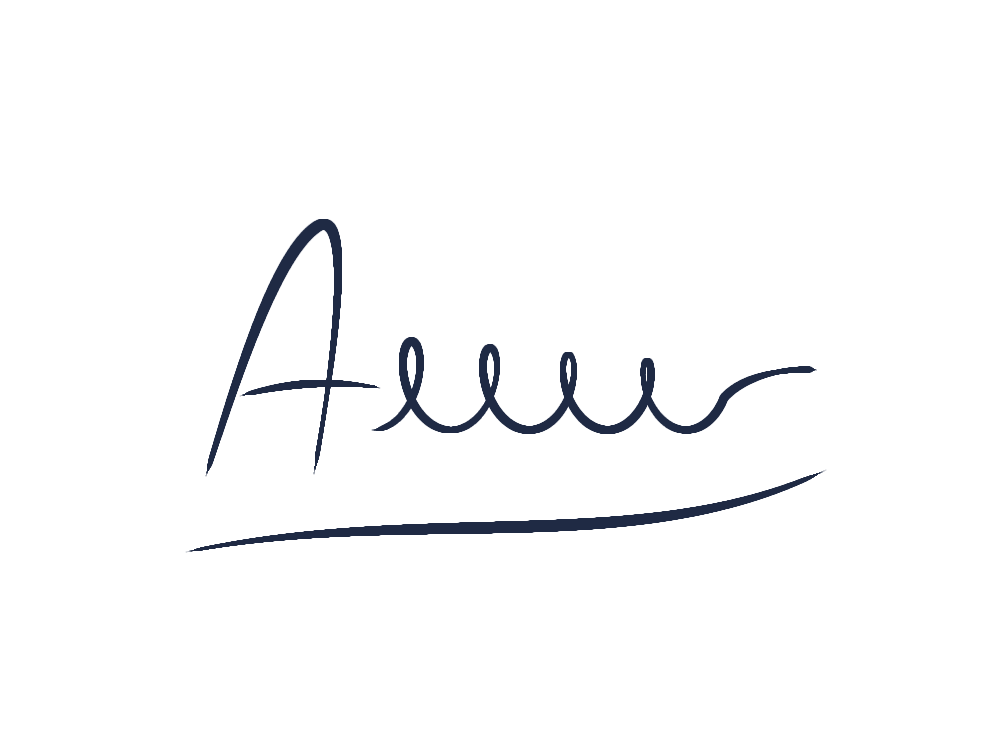
Drawing your signature
Write your signature with a pen, finger or mouse, tidy it up and download a transparent PNG you can place in documents.
Read the guide
Drawing on a photo
Annotate a screenshot, trace a reference or doodle on a picture — on a layer above it, so the photo itself stays untouched.
Read the guide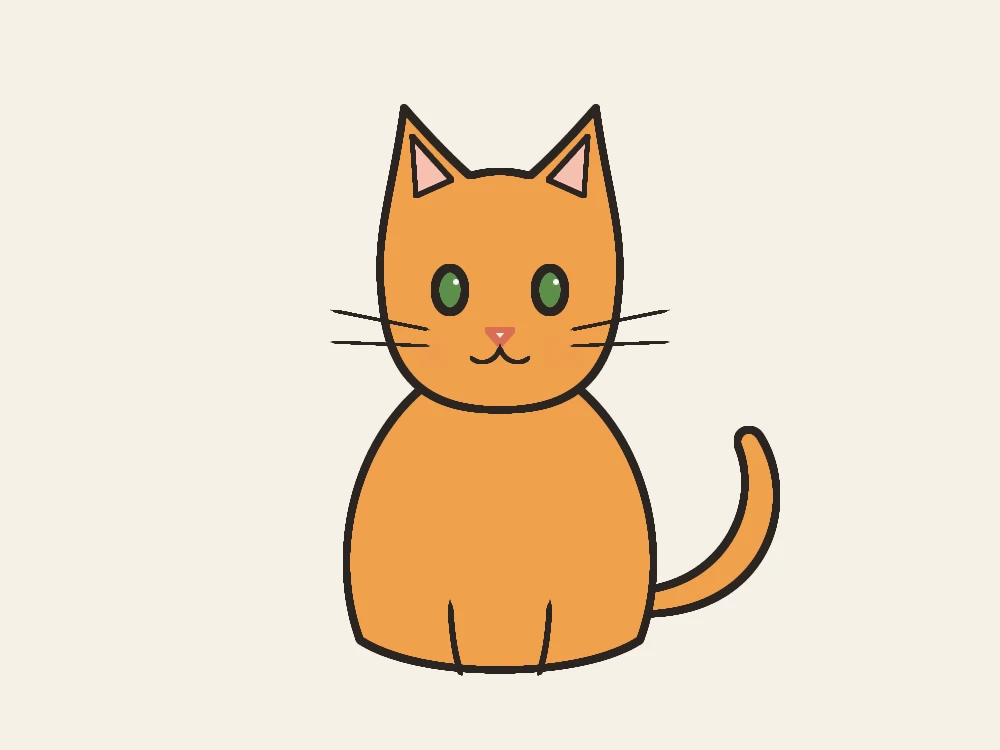
How to draw a cat
Start with two ovals, trace clean outlines on a new layer, add the face and fill in color. No experience needed.
Read the guide
Drawing ideas
Get a random prompt, or browse simple ideas for doodles, practice, kids and a five-minute warm-up.
Read the guideFeatures
Everything you need to sketch, paint and share.
A focused set of tools that feel great under your pen — no clutter, no learning curve.
Pressure-sensitive brushes
Ink pen, pencil, marker, calligraphy, charcoal, airbrush and more — each hand-tuned. Lines swell and taper with Apple Pencil or stylus pressure, with an adjustable pressure curve.
Stroke stabilization
Stabilization turns a shaky hand into confident, flowing lines. Dial it up for lettering, down for sketching.
Layers & blend modes
Stack, reorder, hide and lock layers. Set opacity and blend modes like Multiply, Screen and Overlay, then merge when you are done.
Symmetry & mandalas
Mirror, four-way or radial symmetry with up to 16 segments and a kaleidoscope mode. Every stroke repeats as you draw.
Perfect shapes
Pause at the end of a stroke and it snaps to a clean line, circle, rectangle or triangle. A big help with a mouse.
Select & transform
Lasso any area, then move, scale, rotate or flip it. Insert photos and images as layers to trace or draw on.
Undo & redo
Experiment freely with deep history — keyboard shortcuts or a quick two-finger tap to undo, three fingers to redo.
Zoom & rotate
Pinch to zoom and rotate the canvas like a sheet of paper. Snap back to fit whenever you need the whole picture.
Eyedropper & fill
Pick any color from the canvas with a touch-and-hold loupe, and fill line art cleanly with adjustable tolerance.
Timelapse videos
Every drawing records its own timelapse. Export it as an MP4 for social media, or add it to your share link.
Autosave & offline
Every stroke is saved in your browser as you draw. After your first visit DrawingPad opens offline too, and installs like an app.
PNG & WebP export
Download full-resolution PNG or compact WebP images, with or without a transparent background.
.drawingpad project files
Save an editable project with every layer and document setting, then open it on any device to keep drawing.
Share links with previews
Share creates a link to a clean viewing page. Messengers and social networks show your drawing right in the preview.
Made for tablets. Great on desktop.
The canvas fills the screen and the interface stays out of the way. Draw with Apple Pencil on iPad, a pen display, a drawing tablet, your finger or a mouse — the same smooth strokes everywhere.
Zoom & rotate
Pinch with two fingers
Undo
Two-finger tap
Redo
Three-finger tap
Eyedropper
Touch and hold
Privacy
Your drawings stay on your device.
DrawingPad runs entirely in your browser. There is no account to create and nothing to sync. Only images you choose to share leave your device.
- Autosaved in your browser — no account, no cloud sync.
- Project files are opened and saved on your device, never uploaded.
- Only images you choose to share are uploaded, as a flattened picture.
- Each share is a snapshot: later edits to your canvas stay private.
Keyboard shortcuts
Fast hands, fewer clicks.
On a computer, keep one hand on the keyboard. Press ? in the editor to see every shortcut.
Tools
- Brush
- B
- Eraser
- E
- Eyedropper
- IorAlt+ click
- Fill
- G
- Select (lasso)
- S
- Transform
- V
- Text
- T
- Symmetry on / off
- M
Edit & file
- Undo
- ⌘/CtrlZ
- Redo
- ⌘/CtrlShiftZor⌘/CtrlY
- Copy / cut
- ⌘/CtrlCor⌘/CtrlX
- Paste as a layer
- ⌘/CtrlV
- Select all
- ⌘/CtrlA
- New canvas
- N
- Save as .drawingpad
- ⌘/CtrlShiftS
- Open .drawingpad
- ⌘/CtrlO
- Export image
- ⌘/CtrlE
Layers
- New layer
- ShiftN
- Duplicate layer
- ⌘/CtrlJ
- Delete layer
- ShiftBackspace
- Layer above / below
- Alt]orAlt[
- Move layer up / down
- ⌘/Ctrl]or⌘/Ctrl[
Brush & view
- Brush size
- [or]
- Opacity 10–100%
- 1 … 9, 0
- Pan
- Space+ drag
- Rotate canvas
- R+ drag
- Zoom in / out
- ⌘/Ctrl+or⌘/Ctrl−
- Fit to screen
- ⌘/Ctrl0
- Layers / Color
- LorC
- All shortcuts
- ?
FAQ
Questions & answers
Is DrawingPad free?
Yes. DrawingPad is free to use — every brush, layer and tool, with no account and no sign-up. Open the page and start drawing: the canvas is ready the moment the site loads.
Can DrawingPad replace a drawing app on my tablet or computer?
For sketching, inking and painting, yes: DrawingPad gives you a full-screen canvas, pressure-sensitive brushes, stroke stabilization, layers with blend modes and familiar gestures such as two-finger tap to undo. It runs on iPad with Apple Pencil as well as on Windows, macOS, Linux, ChromeOS and Android — no App Store needed.
Do I need to install anything?
No. DrawingPad runs in your web browser on computers and tablets. If you like, add it to your home screen for a full-screen, app-like experience. On iPhone and iPad that also keeps your drawings safe from Safari’s automatic cleanup.
Does it work with Apple Pencil and other styluses?
Yes. Brushes respond to pen pressure from Apple Pencil and other pressure-sensitive styluses, with an adjustable pressure curve. Touch, mouse and trackpad work too, including pinch to zoom and rotate.
Where are my drawings saved?
On your device. DrawingPad autosaves your work in your browser’s local storage, so it is there when you come back. Nothing is uploaded unless you choose to share. Clearing your browser’s site data removes local drawings, and Safari — like every browser on iPhone and iPad — deletes a site’s saved data after 7 days without a visit, unless DrawingPad is on your Home Screen. Save a .drawingpad file to keep a backup.
How do I continue a drawing on another device?
Save it as a .drawingpad project file. It keeps every layer and the document settings. Open the file on DrawingPad in any modern browser — on a laptop, a tablet or another computer — and keep drawing. Opening and saving project files happens entirely in your browser.
What happens when I share a drawing?
DrawingPad uploads a flattened WebP image of your drawing (plus a small preview card for messengers and social networks) and gives you a link like drawingpad.app/s/abc123. Your layers never leave your device. Every share is a snapshot: later changes on your canvas do not change it, and sharing again creates a new link.
Which formats can I export?
PNG and WebP images (optionally with a transparent background), timelapse videos (MP4 in most browsers) and editable .drawingpad project files with all your layers.
Can I draw on a photo?
Yes. Choose New canvas… → Start from a photo… to open a photo as a new drawing, or Insert image… to add a picture to the drawing you have open. The photo sits on its own layer and you draw on the layer above, so the original stays untouched. Photos are opened in your browser and are not uploaded unless you share the drawing.
Can I make a timelapse video of my drawing?
Yes. DrawingPad records a timelapse of every drawing while you work. In Export image…, choose Timelapse to create a short video with an optional “Made with DrawingPad” end card, ready for Instagram, TikTok or YouTube Shorts. You can also add the timelapse to a share link.
Can I draw symmetrical pictures and mandalas?
Yes. Open Symmetry from the side bar, or press M, and choose Mirror, Flip, Four-way or Radial. Radial symmetry repeats every stroke up to 16 times around the center, and Kaleidoscope mirrors every other segment, which is ideal for mandalas.
Does DrawingPad work offline?
Yes, once it has loaded. After your first visit, DrawingPad opens, saves and exports drawings without an internet connection; only sharing a link needs one. In browsers that offer it, choose Install DrawingPad in the app menu to open it in its own window like an app.
Which browsers are supported?
Recent versions of Chrome, Edge, Safari (including iPadOS) and Firefox. DrawingPad uses WebGL 2 for fast, smooth rendering.
About the project
A place to draw, with less in the way.
DrawingPad brings brushes, layers and editable project files into a browser. It is built around a simple starting point: open a canvas and draw, without an account or a setup screen.
Your work stays in this browser until you export it or choose to share. Keep a .drawingpad copy for projects you want to return to — local autosave is convenient, but it is not a cloud backup.