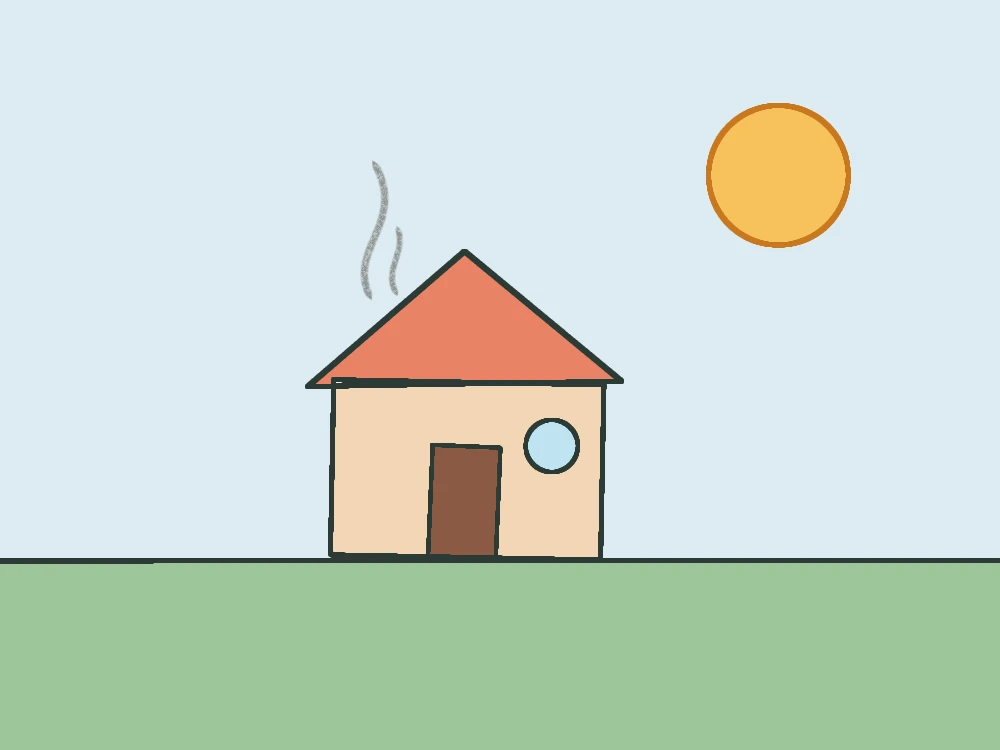

Open a photo and draw on a layer above it.
Drawing on a picture is useful for much more than doodles: mark the spot on a map, explain a screenshot, plan a garden on a photo of the yard, or trace the outline of your pet. DrawingPad opens the photo in your browser and keeps it on its own layer, so nothing you draw changes the original.
Choose a photo
Use the Choose a photo button on this page, or in DrawingPad open New canvas… and select Start from a photo…. JPEG, PNG, WebP and most other image formats work, including iPhone photos in browsers that can open HEIC.
Draw on the layer above
The canvas takes the size of the photo. The photo sits on a locked bottom layer called “Photo”, and the empty “Drawing” layer above it is selected, so every stroke lands on top. Very large photos are scaled down to a size your device can handle.
Erase without damaging the photo
The Eraser removes only your marks on the Drawing layer; the photo underneath stays intact. To change the photo itself, unlock its layer in the layer options first.
Circle details, add arrows and notes.
- Neat circles and boxes: draw a rough loop around something and hold still for half a second before you let go. It snaps to a clean ellipse or rectangle. A line snaps straight the same way, which is perfect for an arrow’s shaft.
- A highlighter: choose Marker, a bright yellow, and lower the opacity with the side slider so the photo shows through.
- Handwritten notes: there is no text tool, but short labels written with the Ink Pen look friendly and personal. Zoom in to write small.
- Colors that stand out: use white or yellow on dark photos and red or black on light ones, like the notes over the lake above.
Trace a photo to learn to draw it.
Tracing is a classic way to practice proportions and to turn a photo into line art.
Fade the photo
Open Layers, tap the Photo layer to open its options and lower its Opacity to about 30–50%. Your lines will stand out against it.
Trace the main shapes
On the Drawing layer, follow the big outlines first, then the details. Raise Stabilization in the brush settings for smooth, confident lines.
Hide the photo
Uncheck the Photo layer to see your drawing on its own. Add a layer below your lines to color it in with the Fill tool.
Export only the drawing
With the Photo layer hidden, choose Export image…, then PNG with Transparent background to get line art you can place anywhere.
Add a picture to the drawing you already have.
To bring an image into an existing drawing, choose Insert image… in the app menu, paste an image you copied (Ctrl+V or ⌘V), or drag an image file onto the canvas. It arrives on a new layer, centered, with the Transform tool ready: drag to move it, use the corners to resize and the handle above to rotate, then select Done. You can reopen Transform later with V.
This is handy for reference pictures, a pattern to color in, or a sticker you exported earlier. Keep the reference on its own layer, lower its opacity and hide it before you export.
Save the result, and keep the photo private.
Your photo stays on your device: DrawingPad opens it in the browser and saves the drawing locally. Export image… saves a PNG or WebP of everything visible, the photo included. Save as .drawingpad keeps the photo and your notes on separate layers, so you can edit the notes later.
Only Share uploads a copy, a flattened picture of the photo with your drawing, and creates a link anyone can open. Think about what is in the photo before you share it: faces, house numbers, license plates or personal details on a screenshot.