Open a canvas in your browser.
DrawingPad is a free browser drawing app for sketching with Apple Pencil or your finger. It opens directly to a canvas, with brushes, layers and color controls around the edges. You do not need an account or an App Store download.
Open DrawingPad on your iPad
Use a current browser with WebGL 2 enabled. Start with a modest canvas size while you get comfortable; larger canvases and more layers use more device memory.
Choose a brush and color
Tap Brush to open the library. Try Ink Pen for a clean line or Pencil for a textured sketch. Use the side sliders for brush size and opacity.
Draw a few test strokes
Make a light line, then a firmer one with a pressure-sensitive pencil. If you are using your finger or a pencil without pressure sensitivity, adjust the size slider instead.
Find a pressure response that feels comfortable.
DrawingPad uses the pen pressure reported by your browser to vary a brush’s width or opacity. The result depends on both your pencil model and the selected brush. For example, Ink Pen changes width with pressure, while Technical Pen is designed for a more even line.
Apple Pencil USB-C does not have pressure sensitivity. Apple Pencil Pro supports it, as do the first- and second-generation Apple Pencil. Your pencil must also be compatible with your iPad. Check Apple’s Pencil feature comparison and iPad compatibility list for your model.
Open DrawingPad menu → Settings → Pressure curve. Choose Soft if you want a light touch to make a fuller stroke, Linear for an even response, or Firm if you prefer to press harder.
In the brush library, expand Brush settings to adjust Pressure → Size, Pressure → Opacity and Stabilization. More stabilization helps smooth a shaky outline; less lets quick sketches follow your hand more closely.
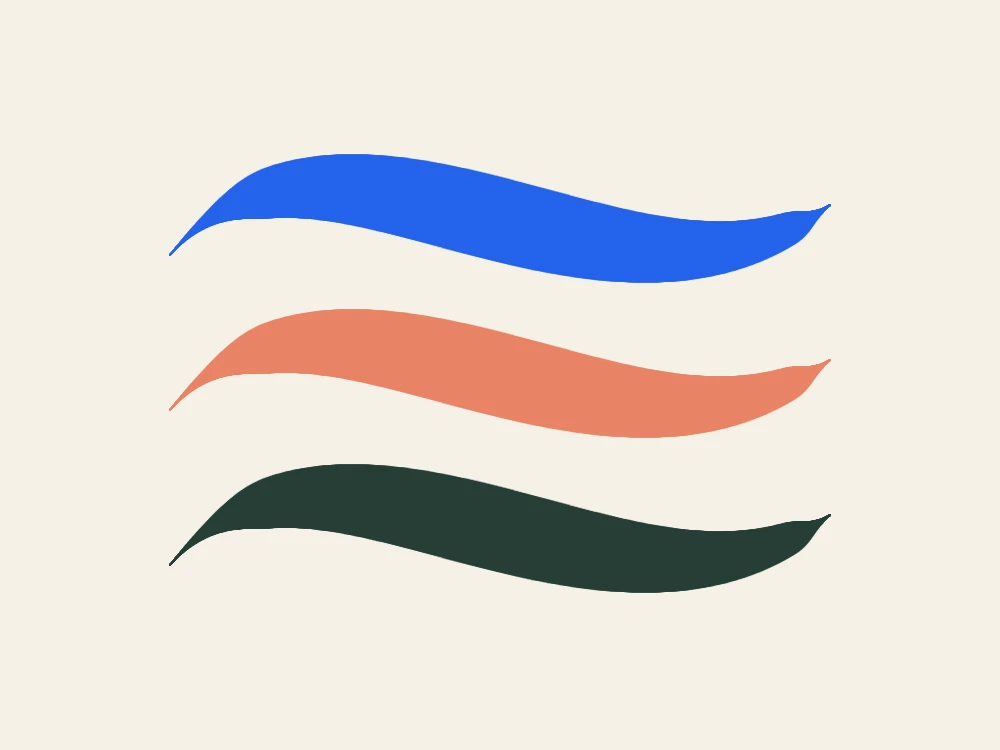
If pressure seems flat, check the pencil model, try Ink Pen, and make sure Pressure → Size is above zero. DrawingPad responds to browser pen input; it does not provide Pencil Pro squeeze or barrel-roll controls. The strokes above use simulated pen input to demonstrate the brush response, rather than a recording of a particular iPad.
Move the canvas with your free hand.
- Pinch and turn with two fingers to zoom and rotate the canvas.
- Tap with two fingers to undo your last action.
- Tap with three fingers to redo.
- Touch and hold to pick a color from the canvas with the eyedropper.
Gesture shortcuts and the touch-and-hold eyedropper can be switched on or off in Settings. You can also move the brush sliders to the right side if that is more comfortable for your drawing hand.
For a more flexible sketch, put a rough outline on one layer and draw your final lines on another. The layers guide walks through a small illustration with an editable example you can download.
Take your drawing with you.
Your work autosaves in the browser you are using. It is not an online account, and opening DrawingPad on a laptop does not automatically bring over your iPad drawings.
To make a backup or continue elsewhere, choose Save as .drawingpad in the app menu and keep the downloaded file in Files or another location you control. On the other device, choose Open .drawingpad file….
For a finished picture, use Export image… and choose PNG or WebP. You can also export a PNG with a transparent background to place your sketch over another design. Only using Share uploads a flattened copy of your drawing.