Open a canvas in Chrome.
DrawingPad runs in the Chrome browser that every Chromebook already has. There is nothing to install from the Play Store and no account to create, which also makes it handy on school Chromebooks where you cannot add apps.
Go to drawingpad.app
The canvas opens straight away. Your drawing is saved in Chrome on this Chromebook as you work.
Pick a brush
Tap Brush in the toolbar. Pencil is good for sketching, Ink Pen for clean outlines and Marker for bold color. The sliders at the side change the size and opacity.
Use layers for color
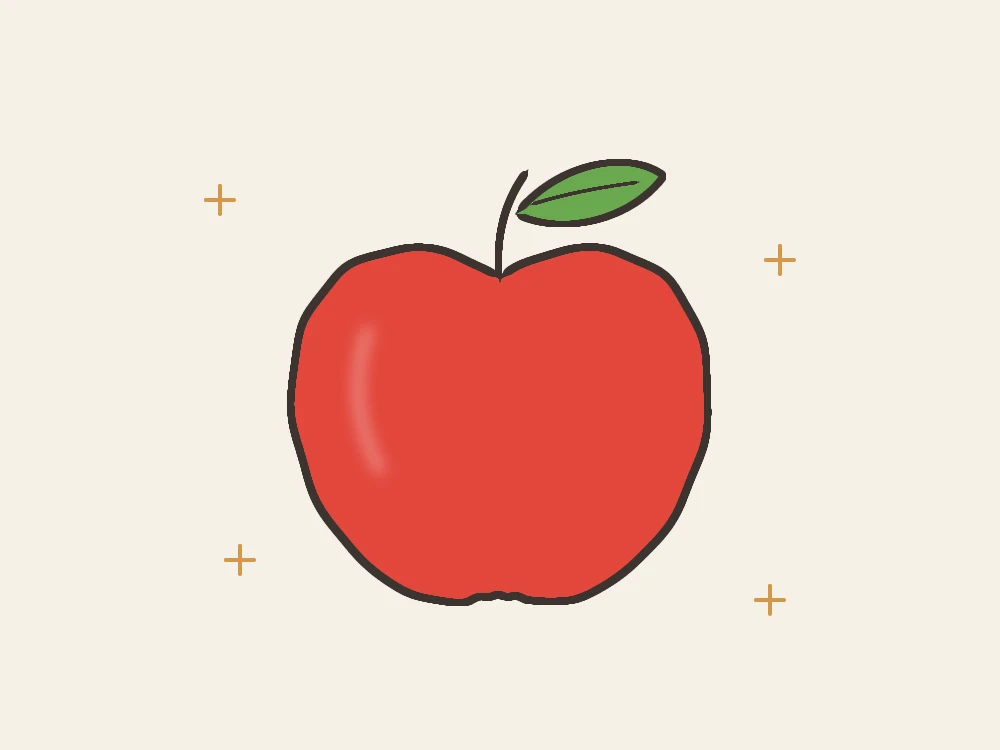
Draw outlines on one layer and color on the layer below, like the apple above. Then the Fill tool colors inside your lines without covering them. The layers guide shows how.
Draw with a stylus, your finger or the touchpad.
Stylus
Many Chromebooks and Chromebook tablets support a USI stylus, and some come with a pen built in. Chrome reports the pen’s pressure, so DrawingPad’s pressure brushes make thicker lines when you press harder. If lines feel too heavy or too faint, change Settings → Pressure curve. The eraser end of a pen that has one erases automatically.
Touch screen
Draw with one finger. Pinch with two fingers to zoom and rotate the canvas, tap with two fingers to undo and with three to redo. Once you have drawn with a stylus, touch stops painting for the rest of the session, so a palm resting on the screen leaves no marks; your fingers still zoom, rotate and undo.
Touchpad
Press and hold the touchpad while you move your finger to draw. Short strokes are easier than long ones, and Stabilization in the brush settings smooths a shaky line. Pause at the end of a stroke and it snaps to a straight line, circle or rectangle. If holding the touchpad down is tiring, look for tap dragging in your Chromebook’s touchpad settings. More tips are in the mouse and touchpad guide.
Keyboard
Shortcuts use Ctrl on a Chromebook: Ctrl+Z to undo, Ctrl+Shift+Z to redo, B for the brush, E for the eraser and [ and ] for the brush size. Press ? in DrawingPad to see them all.
Install DrawingPad as an app.
When Chrome offers it, choose Install DrawingPad in DrawingPad’s app menu, or use the install button in Chrome’s address bar. DrawingPad then opens in its own window and appears in the launcher and on the shelf like other apps.
After DrawingPad has loaded once, it also opens without an internet connection: useful on a bus or in a classroom with poor Wi-Fi. Sharing a link needs a connection; drawing, saving and exporting do not.
Make sure your drawings are still there tomorrow.
DrawingPad saves drawings in Chrome’s storage on this Chromebook. They are not tied to your Google account and do not appear on another device automatically.
- Guest mode deletes everything, drawings included, when you sign out.
- School and work Chromebooks may be set up to erase local data when you sign out, or when a different student uses the device.
- Clearing browsing data for the site removes the drawings saved in Chrome.
To keep a drawing safe, choose Save as .drawingpad in the app menu (Ctrl+Shift+S). The project file keeps every layer. Chrome saves it to Downloads; in the Files app, move it to Google Drive to back it up and reach it from any computer. Open it again with Open .drawingpad file…. For a picture to hand in or post, use Export image….
Keep drawing smooth on an older Chromebook.
DrawingPad uses the graphics processor through WebGL 2, which Chromebooks support. Very large canvases and many layers need more memory, so on a budget Chromebook:
- Start with the Screen size canvas instead of 4K.
- Merge layers you have finished with (Merge down in the layer options).
- Close other heavy tabs while you draw.