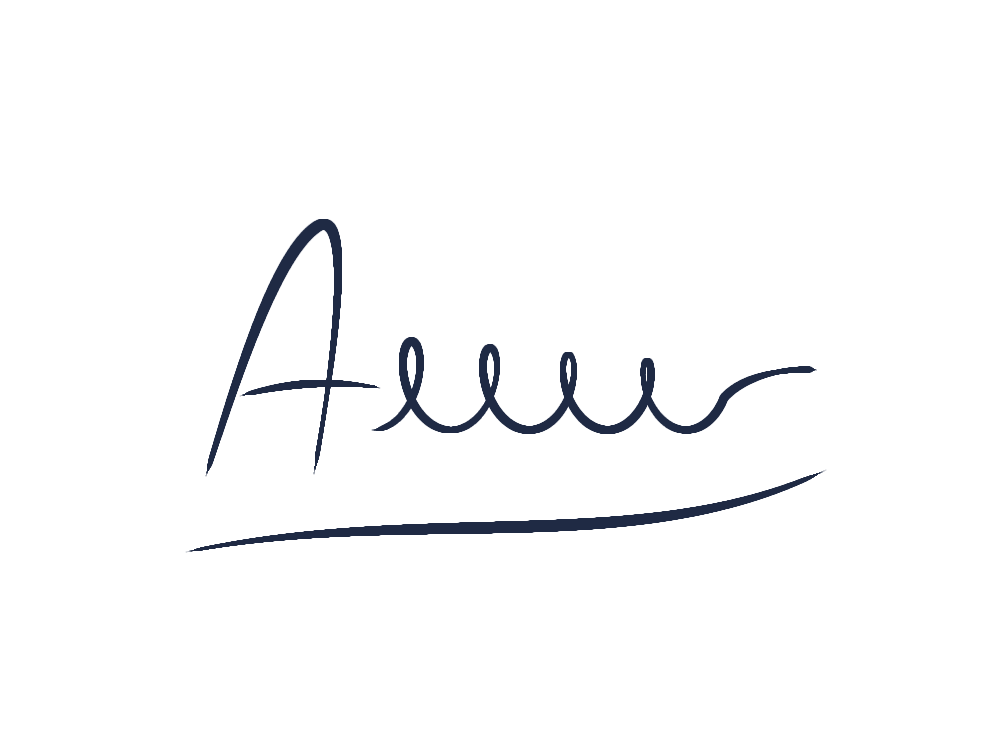
A picture that fits over another background.
A transparent PNG keeps the pixels you draw and leaves untouched areas see-through. It is useful for a small illustration on a slide, a sticker design or a drawing placed over a colored website section.
In DrawingPad, the canvas background color is separate from your painted layers. You can keep a comfortable white or cream canvas while drawing and leave that background out when you export. The checkerboard in the example is only a preview of transparency; it is not part of the PNG.

Export your drawing without the canvas color.
Draw on an ordinary layer
Open DrawingPad and make your sketch. Leave areas you want transparent unpainted. For practice, download the plant project and open it from the app menu.
Open Export image…
Tap the DrawingPad icon at the top left, then choose Export image…. On a keyboard, use ⌘E on Mac or Ctrl+E on Windows and Linux.
Choose PNG and enable transparency
Select PNG, then turn on Transparent background. This leaves out the document’s background color and keeps your visible painted layers.
Export and place it in your design
Select Export to download the image. Place the PNG over a colored background in its destination app to check the transparent edges.
You can also open Layers and uncheck Show background color to preview transparency while drawing. If the background is already hidden, the export dialog keeps transparency enabled automatically.
Still seeing a white rectangle?
A white stroke is still paint.
The transparent export setting removes the canvas background color. It does not remove white pixels you painted, filled or included on another layer. Hide a layer to find where the white area comes from, then erase it or leave that layer out of the export.
Some image viewers display transparency as white.
A white preview does not necessarily mean your PNG is opaque. Place it over a colored shape, or use a viewer with a checkerboard background, to see whether the empty areas are transparent.
Sharing and exporting are different.
Use the downloaded PNG as your transparent asset. A messenger’s preview card or a screenshot of your drawing is not a substitute for the original exported file.
Choose a format for what comes next.
- PNG: lossless image export with transparency. A useful default for clean outlines and reusable illustrations.
- WebP: an image with adjustable quality and optional transparency. Try it when file size matters and the destination accepts WebP.
- .drawingpad: an editable project that preserves the layers and canvas settings. Save this as well if you want to keep working.
PNG and WebP combine the visible drawing into a single image. To learn how to keep the pot, leaves and details independently editable, see drawing with layers.
Image export happens on your device. It does not upload your drawing or require an account.