You draw. DrawingPad keeps the moments.
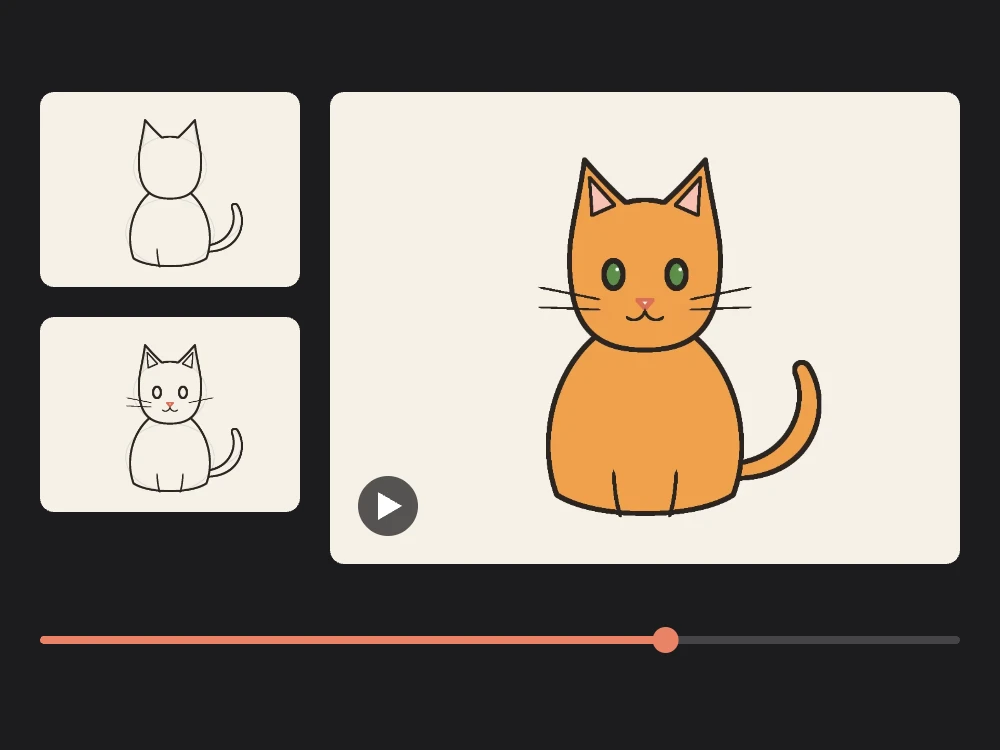
A timelapse shows how a drawing came together: the first loose lines, the clean outlines, the color. DrawingPad records one automatically for every drawing. There is no record button to remember and nothing to set up.
After each change, such as a stroke, a fill or an undo, DrawingPad stores a small picture of the whole canvas when the browser has a free moment. It never interrupts a stroke, so drawing stays as smooth as before. A drawing keeps up to 240 moments; on long drawings, every other older moment is dropped to make room, so the video still covers the whole process evenly.
Turn it into a video.
Open Export image…
In the app menu, choose Export image… (⌘E / Ctrl+E) and select Timelapse as the format.
Pick the size
Choose 1080 or 720 pixels for the long side of the video. The video has the same shape as your canvas. Turn End card on or off: it ends the video with “Made with DrawingPad”.
Create the video
Select Create video. It is made on your device, usually in a few seconds, and a preview plays when it is ready.
Download or share
Select Download to save the file. On phones and tablets that support it, Share… sends the video straight to an app such as Instagram, TikTok, Messages or Photos.
The drawing part of the video lasts between 3 and 14 seconds, depending on how many moments were recorded. The finished drawing then stays on screen for a moment before the optional end card. In Chrome, Edge, Safari and recent Firefox the video is an MP4 (H.264) that plays almost everywhere; browsers that cannot create MP4 files directly record the canvas as a WebM or MP4 video instead, which takes as long as the video itself.
Opened an old drawing, or want to leave the warm-up sketch out? Select Start the timelapse over from here in the timelapse export. The recorded moments are deleted and the timelapse restarts from the drawing as it is now.
Your process stays on your device.
The recorded moments are saved in your browser together with the drawing and are deleted when you delete the drawing. They are not part of .drawingpad project files, and they are never uploaded unless you share a link with Include timelapse video turned on. The video you export is made on your device too.


Make it look great on Reels, TikTok and Shorts.