Hold still at the end of a stroke to get a clean shape.
A mouse is great at pointing and clumsy at curves. DrawingPad helps with the hardest part: draw a rough line, circle or box, and keep the mouse button pressed for about half a second at the end. The stroke turns into a clean straight line, circle, ellipse, rectangle, triangle or polygon in the same brush and color.
Draw the shape roughly
A wobbly loop is fine. Close it near where you started for a circle or a box; for a line, just drag from one end to the other.
Pause before you let go
Keep the button pressed without moving. When the shape snaps, release. Everything you drew before the pause is replaced by the clean version.
Adjust a straight line
After a line snaps, keep holding and move the mouse: the end of the line follows, so you can set its exact length and angle before you release.
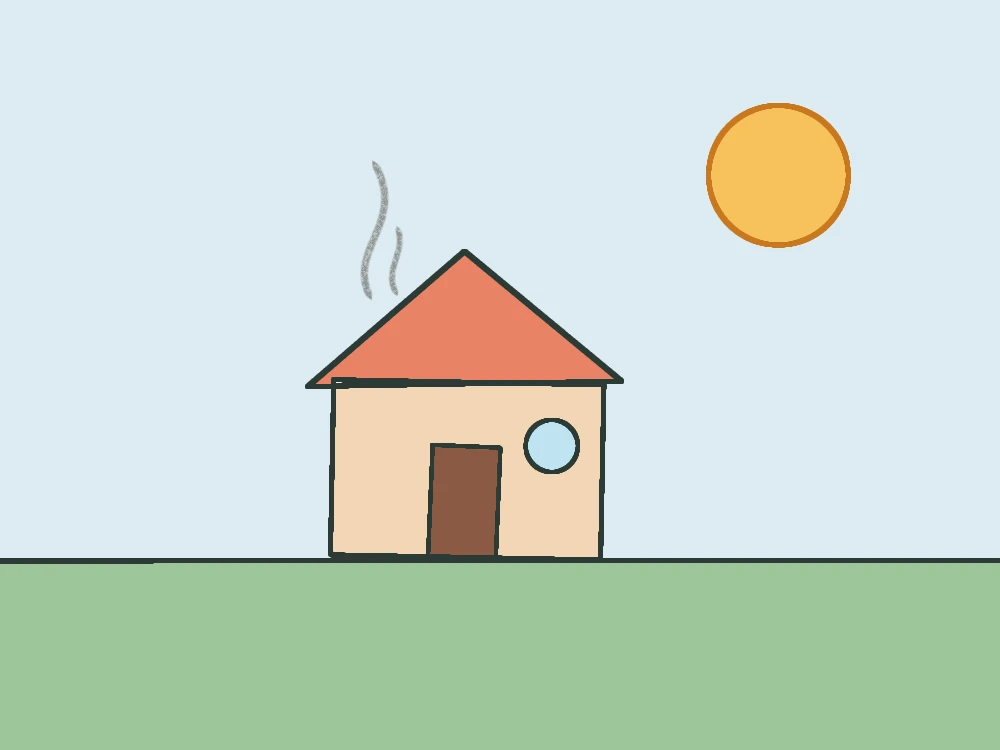
Every outline of the house above was drawn this way, while the smoke stayed freehand because there was no pause. A snapped shape is a single stroke, so one undo removes it if it is not what you wanted. If you do not want shapes at all, switch off Settings → Hold to draw shapes.
Smooth out wobbly lines.
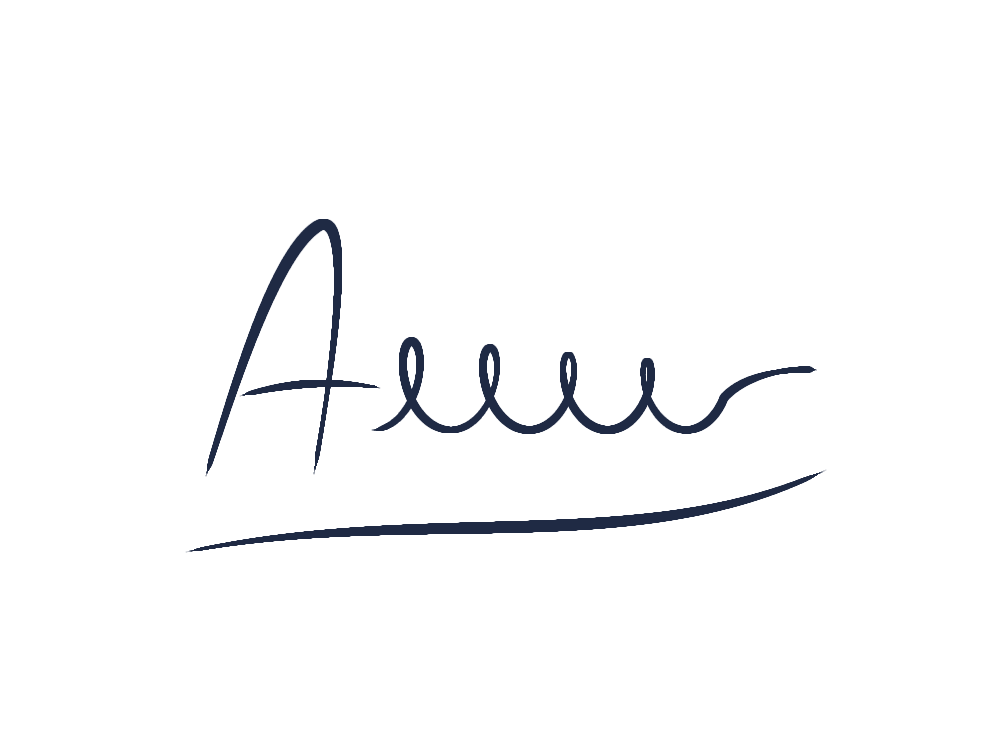
Open the brush library by tapping Brush while it is already selected, expand Brush settings and raise Stabilization. The line trails slightly behind the pointer and averages out the small jitters of your hand. It is ideal for outlines, lettering and signatures.
Pick brushes that suit a mouse. A mouse has no pressure, so a pressure-driven brush draws at a constant size: Ink Pen, Technical Pen and Marker give even, confident lines. For soft shading, a lower opacity on the side slider builds up color gradually over several strokes.
Draw smarter, not slower.
Color with Fill, not by scribbling
Draw closed outlines first, then click inside them with the Fill tool (G). In the fill options, Sample all layers lets you fill on a separate color layer under your line art, and Grow fill under lines closes the gap at soft edges.
Draw big, then resize
Draw an element larger than you need, where your hand is steadier, then use Transform (V) to scale, rotate and move it into place. Draw around it with Select (S) first to transform only that part.
Let symmetry do half the work
Faces, vases, butterflies and buildings are symmetrical. Turn on Mirror in the symmetry panel and every stroke appears on both sides. See symmetry and mandalas.
Keep your other hand on the keyboard
B brush, E eraser, [ and ] for size, 1–0 for opacity and Ctrl/⌘ + Z to undo. Press ? in DrawingPad for the full list.
Drawing on a laptop trackpad.
Press and hold the trackpad (or click and keep the button down) while you move a finger to draw. On a Mac, three-finger drag in the Accessibility settings lets you draw without pressing; Windows and Chromebook touchpads have similar tap-and-drag options. Two-finger scrolling moves the canvas and pinching zooms, so you rarely need the keyboard to navigate.
Short strokes work best on a trackpad. Draw a long line as two or three overlapping strokes, or use the hold-to-snap shapes above. If you have a phone or a tablet nearby, DrawingPad runs there too, with your finger as the brush.