Connect your tablet and run a pressure test.
A pen tablet such as a Wacom Intuos, XP-Pen Deco or Huion Inspiroy, or a pen display such as a Cintiq or Kamvas, works with DrawingPad through your browser: no plug-in and no extra software beyond the tablet’s own driver.
Install the current driver
Download it from your tablet manufacturer’s website, then restart the computer if the installer asks you to. On a Mac, allow the permissions the driver requests in System Settings → Privacy & Security.
Open DrawingPad and choose Ink Pen
Tap Brush and select Ink Pen. Its width follows pressure closely, so it is the best brush for a test.
Draw one light and one firm line
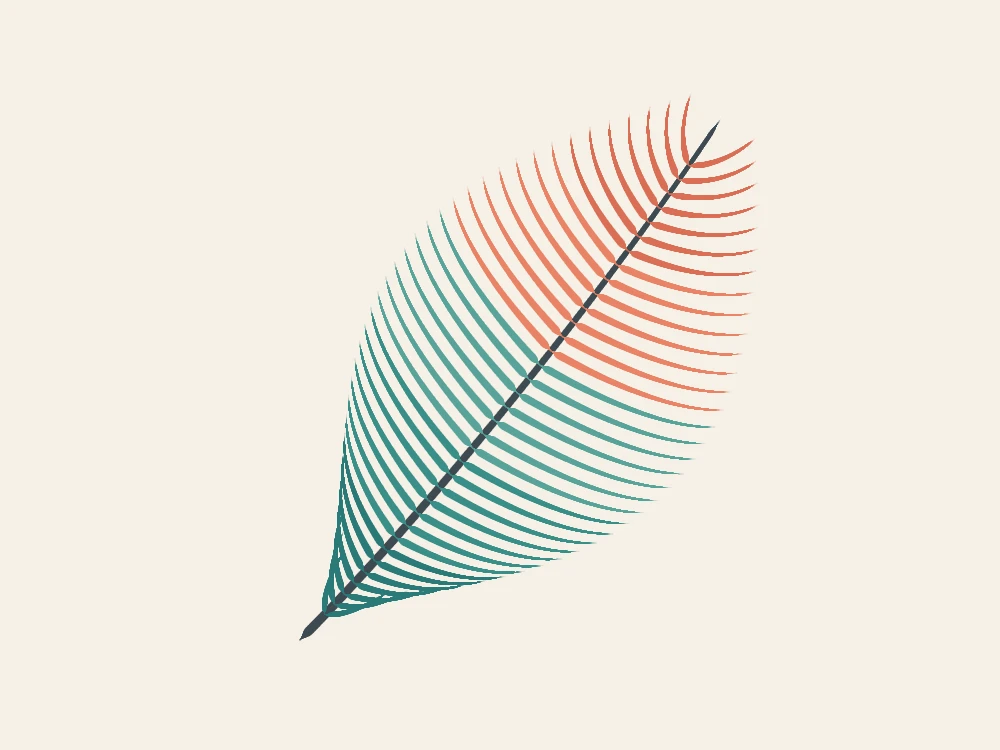
Start lightly and press harder as you go. If the line swells like the feather above, pressure works. If both lines are the same width, read the next section.
If pressure is not working.
Browsers receive pen pressure from the operating system. When the driver sends plain mouse input instead, DrawingPad gets no pressure and every line is the same width.
- Windows: turn on Windows Ink in the tablet’s driver. Wacom has a Use Windows Ink checkbox under Mapping in Wacom Tablet Properties; XP-Pen and Huion drivers have a Windows Ink switch in their pen settings. Restart the browser afterwards.
- macOS: make sure the driver is installed and allowed in Privacy & Security. Safari, Chrome, Edge and Firefox all pass pen pressure to web pages.
- Linux: many tablets work with the drivers built into the system. Pressure support varies by browser and desktop session, so try another browser if one shows none.
- Check the brush: in the brush library, open Brush settings and make sure Pressure → Size is above zero. Brushes such as Technical Pen are designed for an even line.
Map the tablet to one screen.
With several monitors, a tablet often spans all of them, which stretches every movement sideways. In the driver’s mapping settings, map the tablet to the monitor you draw on, and turn on the option that keeps proportions (Wacom calls it Force proportions). A circle drawn on the tablet then comes out round on screen.
For a pen display, map the pen to the display itself so the line appears exactly under the tip. If it is slightly off, run the calibration in the driver. More room helps too: put the browser in full screen, or install DrawingPad from its app menu when your browser offers Install DrawingPad.
Tune how the pen feels.
Pressure curve
In Settings → Pressure curve, Soft gives full, dark strokes with a light hand, Firm needs more pressure to reach the full size, and Linear sits in between. Your driver may have its own pressure feel; adjust one of the two, not both at once, so you know what changed.
Stabilization
For long, clean lines in inking and lettering, raise Stabilization in Brush settings. Lower it for quick sketching, where you want the line to follow every small movement.
See the brush before you touch down
Tablets report a hovering pen. With Settings → Brush cursor outline on, a circle under the pen shows the brush size before the stroke begins.