Write it the way you do on paper.
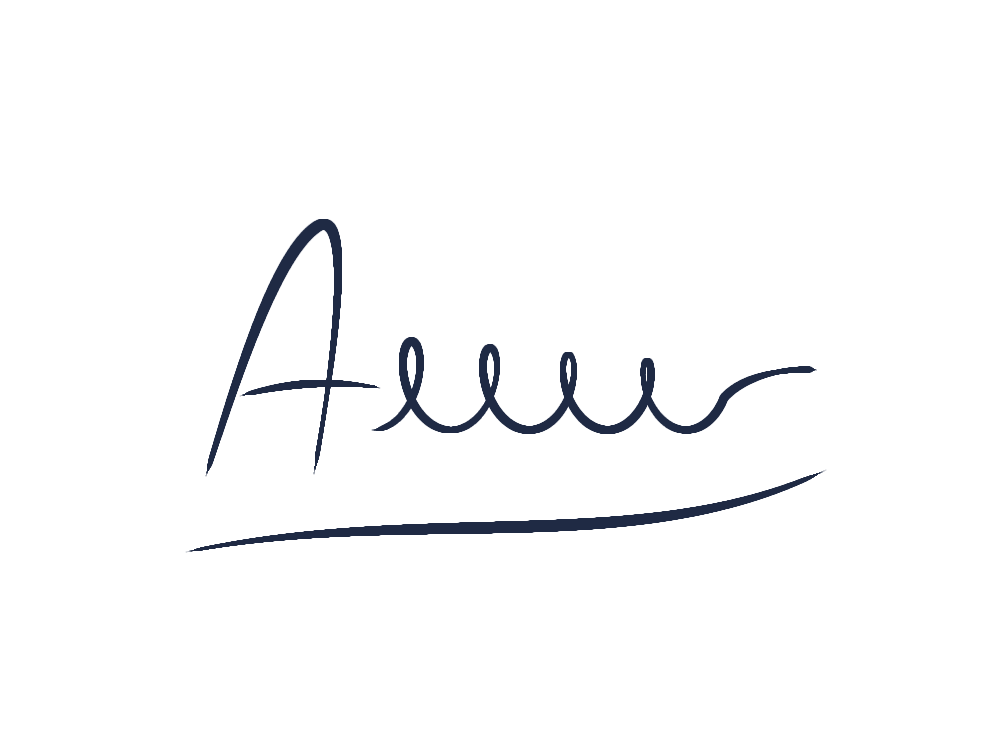
A signature image is simply your handwriting on a transparent background. You can draw one in DrawingPad with whatever you have: a stylus, your finger on a phone or tablet, a touchpad or a mouse. Nothing is uploaded while you draw, and you do not need an account.
Start a wide canvas
Open DrawingPad, tap the DrawingPad icon at the top left and choose New canvas…. A signature is wide and short, so pick HD or type a custom size such as 1600 × 600. The background color does not matter: you will leave it out when you export.
Choose a pen and a color
Tap Brush and choose Ink Pen. It gives a crisp, ink-like line that thickens and thins with pen pressure. In Color, pick black or a dark blue, like a ballpoint pen.
Write in one confident motion
Zoom in so the canvas fills the screen and sign at a natural speed. Bigger movements give smoother curves, and a quick, continuous stroke looks more like a real signature than a slow, careful one.
Undo and try again
Most people need a few attempts. Use ⌘Z on a Mac, Ctrl+Z on Windows and Chromebooks, or tap with two fingers on a touch screen. Use the Eraser for a stray dot.
Make it look natural, even with a mouse.
Smooth out a shaky hand
Open the brush library and expand Brush settings, then raise Stabilization. DrawingPad smooths the line as you draw, which helps a lot with a mouse or touchpad. Too much stabilization rounds off fast loops, so find the lowest setting that removes the wobble. The guide to drawing with a mouse has more tips.
Let pressure shape the line
With a pressure-sensitive pen, the Ink Pen gets thicker where you press and thinner where you lift off, just like ink. If every line comes out too thick or too thin, change Settings → Pressure curve to Soft or Firm. Setting up a drawing tablet or Apple Pencil is covered in their own guides.
Pause without turning a line straight
DrawingPad can turn a stroke into a clean shape when you hold the pen still at its end. That is great for drawing, but a signature should stay exactly as you wrote it. If a flourish snaps to a straight line, undo and lift the pen without pausing, or switch off Settings → Hold to draw shapes.
Keep your best attempt
Add a layer for each attempt (Shift+N) and hide the ones you do not want in the Layers panel. Only visible layers are exported.
Save it as a transparent PNG.
Fill the canvas with your signature
Choose Transform in the toolbar (or press V) and select Fit to canvas to scale and center the signature, then Done. Less empty space around it makes the PNG easier to place.
Open Export image…
Open the app menu and choose Export image…, or press ⌘E / Ctrl+E.
Choose PNG and Transparent background
Select PNG and turn on Transparent background, so only your ink is saved, not the canvas color.
Export
The PNG downloads to your device. To check the transparency, place it over a colored shape: there should be no white box around the ink.
Want to change it later? Also choose Save as .drawingpad in the app menu. The project file keeps your layers, so you can open it again and export another color or size. The transparent PNG guide explains why a background can still look white in some viewers.
Put your signature into a document.
- Word, Pages and Google Docs: insert the PNG as a picture, resize it and set text wrapping so it sits in front of the text, over the signature line.
- PDF forms: many PDF readers can add an image or a saved signature to a form. In macOS Preview and other readers, look for the markup or signature tools.
- Slides and email signatures: keep the PNG small (a width of a few hundred pixels is plenty) and keep the original file for higher-resolution uses.
A picture of your signature is not the same as a certified electronic signature. Some contracts and official forms require a dedicated e-signature service or a handwritten signature on paper; follow what the document asks for.
Keep your signature private.
DrawingPad keeps your drawings in your browser on this device. Export and project files are created on your device too, without an upload.
Do not use Share for a signature. Sharing uploads a copy of the picture and creates a public link that anyone who has it can open. Save the PNG to a folder you control instead, and delete the drawing from My drawings… if you used a shared or public computer.